Post-Installation Configuration
Internet Connection Test
Run the AXS Guard Internet speed test to verify your Internet connection.
- Navigate to Network > Tools > Internet speed test.
- Click on the
Start Speed Testbutton. - Select the desired mode.
-
Press the
Start Speed Testbutton again to run the test.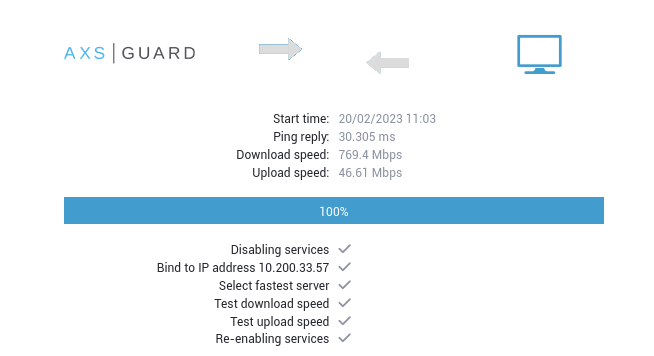
Tips
- If the test fails, run the network device wizard again to verify the configuration of your Internet device(s).
- You can also verify the status of your Internet connection(s) via Network > Status > Internet.
- You can also execute a
pingtest via Network > Tools > Ping.
DHCP Settings
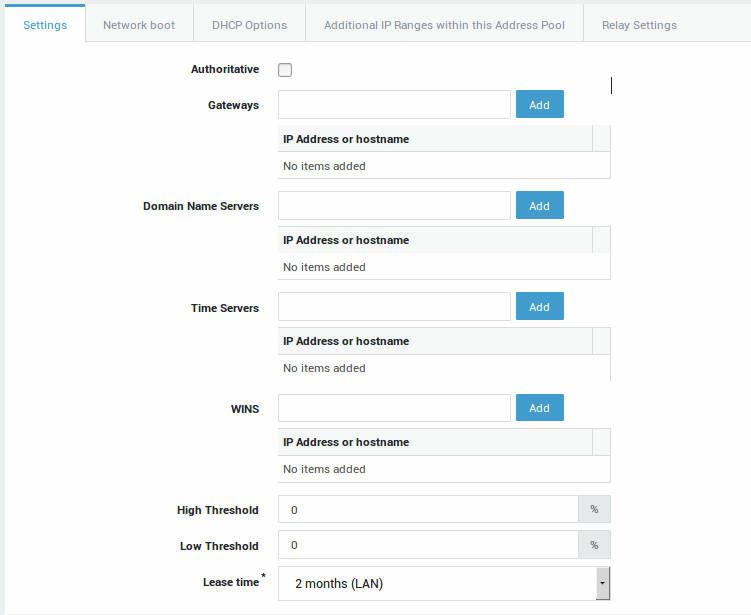
DHCP is not enabled by default on AXS Guard. It offers many advantages over manual IP address configuration and is especially important in a DNS security context. Advantages include:
- Automatic management of IP addresses, including the prevention of issues related to duplicate IP addresses.
- Allows system administrators to set lease times and configure static DHCP leases, which are useful for managing servers, printers and IoT devices in your network.
- Allows system administrators to configure additional DHCP options, such as gateways, preferred DNS servers, NTP servers, WPAD and other advanced options.
- Definition of IP address pools & easy network segmentation.
To use DHCP, you must first enable the feature under System => Feature Activation.

Next, navigate to Network => DHCP => Address Pools to add a DHCP pool. See the DHCP section in the system administration guide on this site for additional information and step-by-step configuration instructions.
NTP Settings
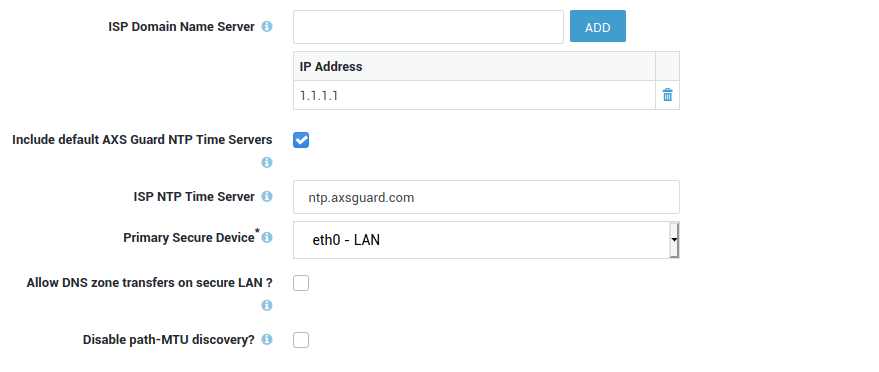
The Network Time Protocol or NTP is a networking protocol for clock synchronization between computer systems.
A correct system time is critical for time-sensitive processes such as log generation, event reporting, scheduled tasks, 2FA and Kerberos authentication.
With an imprecise time, your connected devices and systems may run into different kinds of errors and you also may encounter various troubleshooting burdens.
AXS Guard NTP servers provide redundancy, which means clients and other devices connected to your network will always be able to get the correct time.
Navigate to Network => General to configure NTP.
Open DNS Resolvers vs DNS Security
Open DNS resolvers, such as 1.1.1.1 and the DNS servers of certain ISPs, are DNS servers which are publicly available; they can be used by anyone connected to the Internet.
While practical, this inherent lack of security allows ill-intentioned 3rd parties to propagate payloads related to ransomware and other malicious software across networks all over the world.
Research by industry leaders indicates that more than 91% of malware relies on DNS in one way or another. Despite this, many organizations don’t monitor DNS traffic, leaving them vulnerable to attacks.
AXS Guard's DNS security protects users from inadvertently accessing malware, ransomware, malicious domains, botnet infrastructures and more. It is an essential component of cybersecurity.
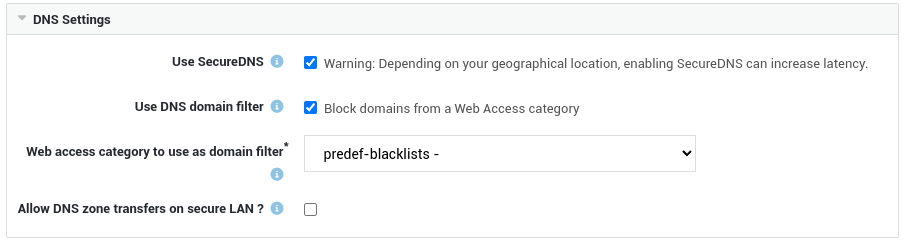
For optimal security, we recommend enabling this feature and rerouting all DNS traffic in your network to AXS Guard. This will close any potential security gaps and ensure that rogue DNS requests are intercepted.
Note that it is essential to activate this feature first, then proceed to Network => General to customize the available options.
DNS services on the Internet
- If you don't intend to use AXS Guard as your DNS server or its DNS security feature and wish to allow clients to use DNS services on the Internet, you must assign the dynamic
fwd-dnsfirewall policy to the appropriate users, groups and/or computers. - If application control is activated on your system, ensure that DNS traffic is also allowed.
User Synchronization & Authentication
The AXS Guard directory services component allows you to import users and groups from your organization’s identity source. You can establish a connection with an on-premises LDAP directory (such as Microsoft Active Directory), Microsoft Entra ID (formerly Azure AD) or a hybrid setup that combines both.
By synchronizing users and groups, you can easily organize and manage individual AXS Guard access privileges, while ensuring accurate logging and reporting of user activity.
User synchronization and authentication also gives you the ability to consolidate user information and reduces the number of distinct user databases to be managed.
When used in combination with the AXS Guard SSO Tool in Domain Mode, users who sign in to your organization’s domain (on-prem, cloud, or hybrid) are automatically authenticated against AXS Guard and their corresponding access privileges are seamlessly enforced.
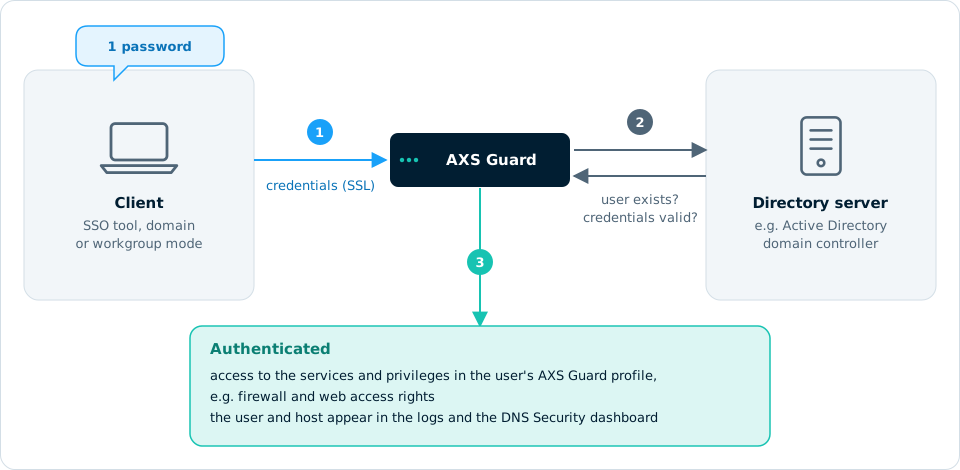
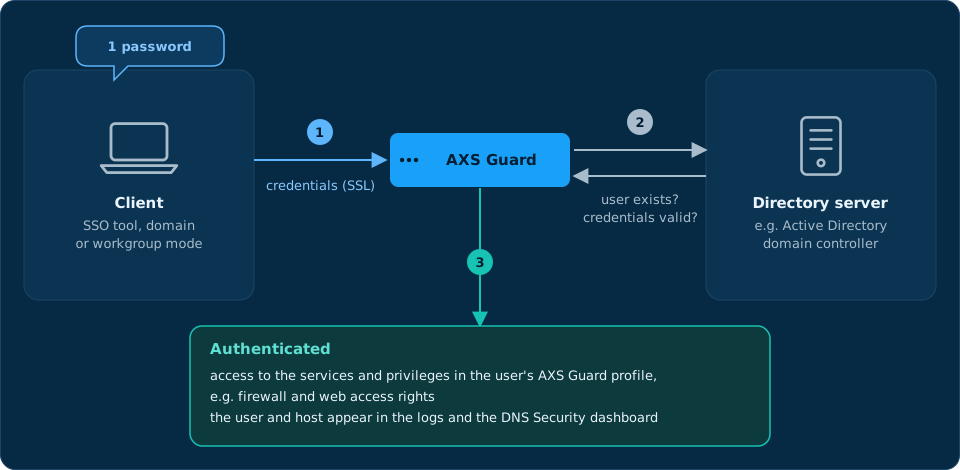
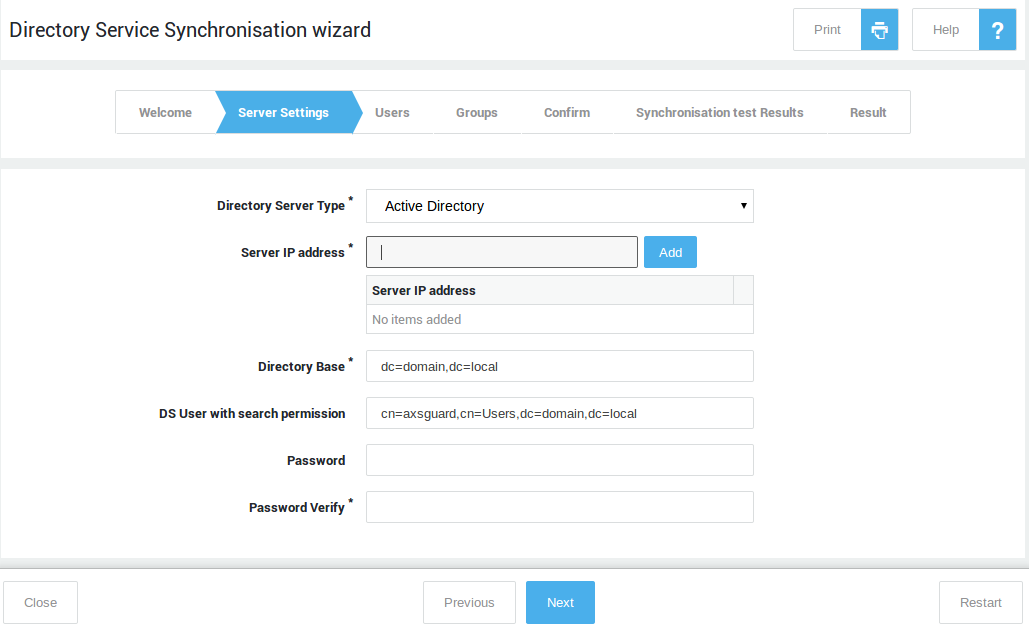
To synchronize users and groups, log in to the AXS Guard appliance and start the synchronization wizard.
The wizard will guide you through the setup process for connecting to Active Directory, Microsoft Entra ID or a hybrid directory environment, and will automatically import and synchronize users and groups based on your configuration.
Computers
By registering computers on AXS Guard, you can assign access privileges at the host level. This means access privileges are linked to a static IP address rather than a user.
It should be noted that assigning security policies at the computer level is only appropriate for servers and devices with a static IP address that have specific access requirements, such as Windows servers that need access to update servers on the Internet.
Host-level access should always be restricted to the bare minimum; user authentication is recommended for optimal security, reporting and logging. Always remember that sloppy configurations can lead to vulnerable environments.
Internet Access
Considerations
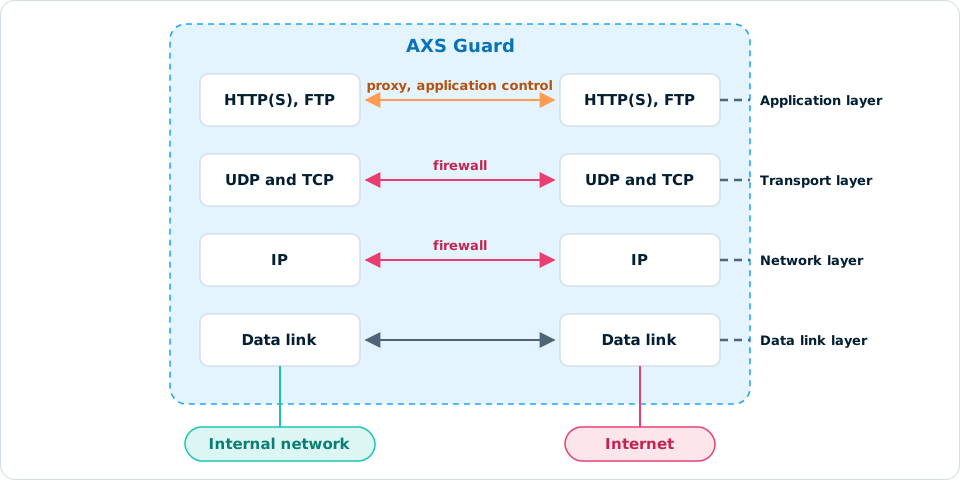
Access to the Internet is blocked by default. Your workflow to connect users to the Internet will vary, depending on whether or not you choose to use certain AXS Guard security features for Internet access. The following combinations are possible:
| AXS Guard Features | Configuration Focus |
|---|---|
| Web access combined with application control. | Proxy server, application control and firewall (Firewall configuration is required for devices which don't connect to the Internet via the AXS Guard proxy). |
| Web access without application control. | Proxy server and firewall. |
| Application control without web access. | Application control and firewall. |
| No web access and no application control. | Firewall only. |
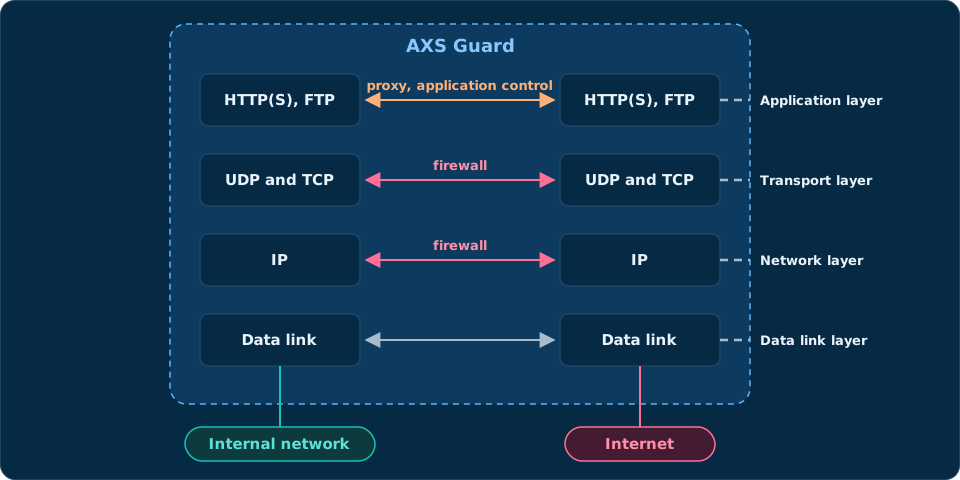
Configuration
Select a feature below. If your configuration focus includes several features, configure each of them.
To allow users to access the Internet through a proxy, you must appropriately configure the AXS Guard proxy server.
The AXS Guard proxy server adds an additional layer of security between your internal network and the Internet. It can securely relay requests from computers and devices in your network, acting as a buffer against cybersecurity threats. See the software section on this site for additional information about AXS Guard proxy features.
AXS Guard supports WPAD, which is a convenient method for system administrators to automatically configure client machines to use a proxy server. Client connection settings must be configured to automatically detect proxy settings in order to discover the IP address of the AXS Guard proxy server and use it without additional configuration. Also see the WPAD Quick Setup Guide on this site. Client browsers can also be configured manually, but this is less convenient and time-consuming.
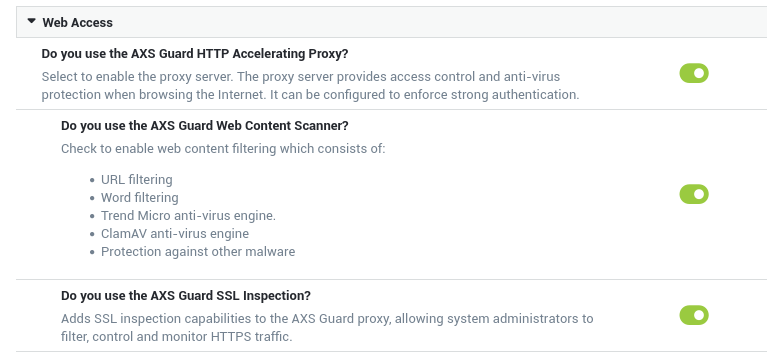
To use the AXS Guard proxy server, you must activate the web access features under System => Feature Activation.
Important
- The use of SSL inspection and the DNS security feature are also highly recommended.
- For users and devices that don't use the proxy server, the AXS Guard firewall must be configured accordingly, as it blocks access to the Internet by default. See the Firewall tab.
- The factory default application control policy only allows HTTP(S) and DNS traffic and must be reconfigured to allow access to certain services on the Internet, e.g. social media. See the Application Control tab.
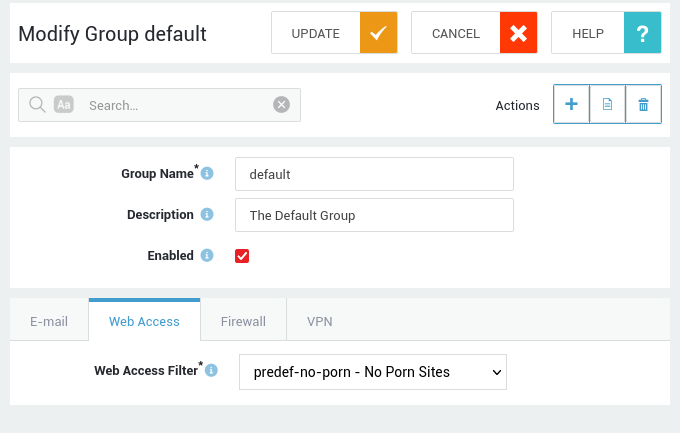
Preconfigured web access filters are present for easy configuration. We recommend using the predef-no-porn filter at the group level for best results.
Quick Proxy Test
- Create a new computer on AXS Guard.
- Assign the
predef-no-pornfilter to the new computer. -
Log in to the computer and run the following
curlcommand to test the proxy server:curl -I -x http://192.168.250.254:3128 http://www.example.comor
curl -I -x http://192.168.250.254:3128 http://www.example.com -U axsguard_user:axsguard_password- Where
192.168.250.254is the IP address of the AXS Guard proxy server. - The second
curlexample simulates user authentication for web access. Either command should return a200response code:
- Where
HTTP/1.1 200 OK
Accept-Ranges: bytes
Cache-Control: max-age=604800
Content-Type: text/html; charset=UTF-8
Date: Mon, 20 Feb 2023 10:56:32 GMT
ETag: "3147526947"
Expires: Mon, 27 Feb 2023 10:56:32 GMT
Last-Modified: Thu, 17 Oct 2019 07:18:26 GMT
Server: ECS (dcb/7EEC)
Vary: Accept-Encoding
X-Cache: HIT
Content-Length: 1256
Age: 595782
Warning: 113 squid/4.16 "This cache hit is still fresh and more than 1 day old"
X-Cache: HIT from axsguard.nias.one
Connection: keep-alive
Application control refers to the process of managing and controlling network traffic related to the execution of certain software programs and access to applications on the Internet. This can include allowing certain applications and protocols to be used while blocking others, e.g. Facebook, Twitter, etc.
Its goal is to increase network security and efficiency by limiting the network resources consumed by unnecessary or resource-intensive programs.
The system default application control policy allows HTTP(S) and DNS traffic.
Application control is only available on systems with a standard or enterprise software bundle. It must be activated under System => Feature Activation.
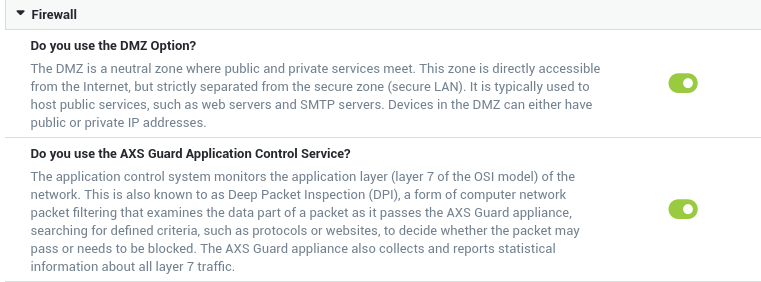
Please note that this feature also affects the behavior of the AXS Guard proxy server, firewall and VPN services. See the application control guide for additional information and guidance on policy assignment.
For users and devices that don't use the proxy server, the AXS Guard firewall must also be reconfigured, as it blocks access to the Internet by default. See the Firewall tab.
Quick Application Control Test
- Create a new computer on AXS Guard.
-
Add the dynamic
fwd-webfirewall policy to the computer created in step 1. If you are using DNS services on the Internet, make sure to also add thefwd-dnspolicy.
-
Log in to the computer and run the following
curlcommands for a quick test:curl -I https://www.example.comcurl -I https://www.twitter.com
HTTPS should not be blocked and the curl command should return a 200 response code for www.example.com:
HTTP/2 200
content-encoding: gzip
accept-ranges: bytes
age: 357299
cache-control: max-age=604800
content-type: text/html; charset=UTF-8
date: Tue, 21 Feb 2023 07:16:58 GMT
etag: "3147526947"
expires: Tue, 28 Feb 2023 07:16:58 GMT
last-modified: Thu, 17 Oct 2019 07:18:26 GMT
server: ECS (dcb/7EA7)
x-cache: HIT
content-length: 648
Twitter is blocked by the factory default policy and should return the following response:
curl: (35) OpenSSL SSL_connect: Connection reset by peer in connection to www.twitter.com:443
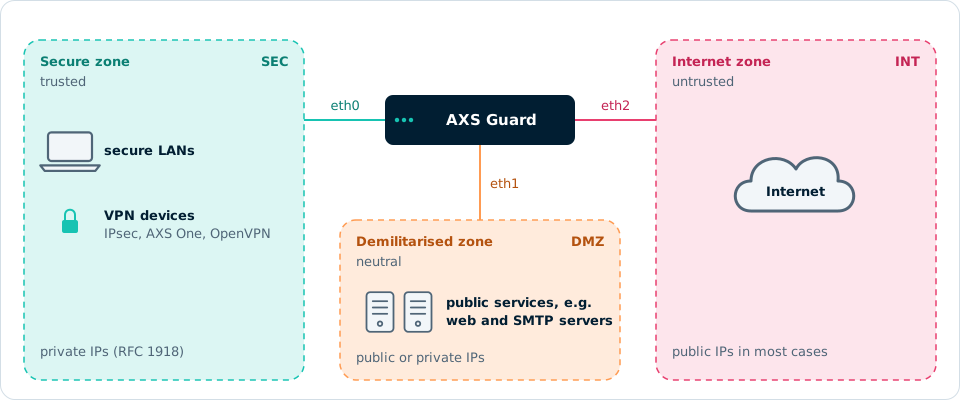
Network traffic towards the Internet is blocked by default and must be explicitly allowed by a system administrator.
The AXS Guard firewall monitors and controls incoming and outgoing network traffic based on predetermined security rules and policies.
The firewall is the first line of defense in a network security strategy, as it governs traffic between various network zones.
Allowing Access to the Internet
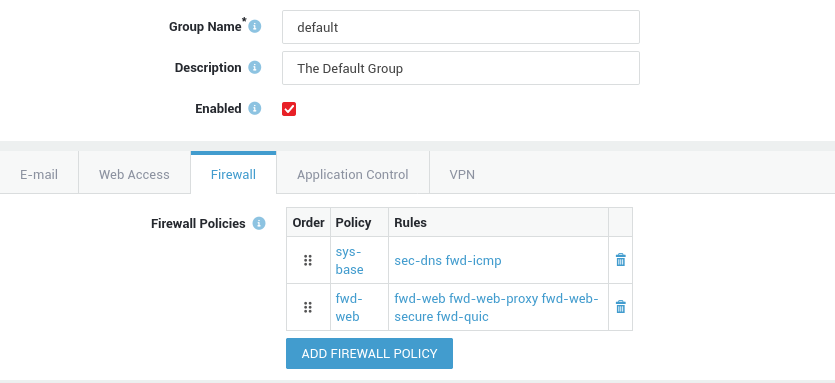
In order to allow users to surf the Internet in environments where the AXS Guard proxy server is not used, system administrators are required to configure the firewall accordingly:
- Go to
Users & Groups => Groupsand select the appropriate group. - Select the Firewall tab.
- Add the dynamic
fwd-webpolicy to the selected group and save the configuration.
Users will be able to browse the Internet once they are successfully authenticated against AXS Guard.
Quick Firewall Test
- Create a new computer on AXS Guard.
-
Assign the
fwd-webfirewall policy to this computer. If you are using DNS services on the Internet, make sure to also add thefwd-dnspolicy. -
Log in to the computer and run the following
curlcommand for a quick test:curl -I http://www.example.com
The curl command should return a 200 response code:
HTTP/1.1 200 OK
Content-Encoding: gzip
Accept-Ranges: bytes
Age: 417993
Cache-Control: max-age=604800
Content-Type: text/html; charset=UTF-8
Date: Mon, 20 Feb 2023 12:36:37 GMT
Etag: "3147526947"
Expires: Mon, 27 Feb 2023 12:36:37 GMT
Last-Modified: Thu, 17 Oct 2019 07:18:26 GMT
Server: ECS (dcb/7EA2)
X-Cache: HIT
Content-Length: 648
Additional Firewall Safeguards
The AXS Guard firewall does more than block set types of traffic. It provides additional safeguards, such as firewall authentication, GeoIP filtering, IP blacklisting and brute-force attack protection, which can be combined with intrusion prevention and intrusion detection and DNS security.
With firewall authentication, you can verify the identity of users who attempt to access resources on your network, and control their access to specific network resources or services.
General E-mail Settings
Some company-wide e-mail settings must be configured so the AXS Guard e-mail system functions correctly. Select the scenario that matches the features enabled on your appliance. For additional information, see the e-mail documentation on this site.
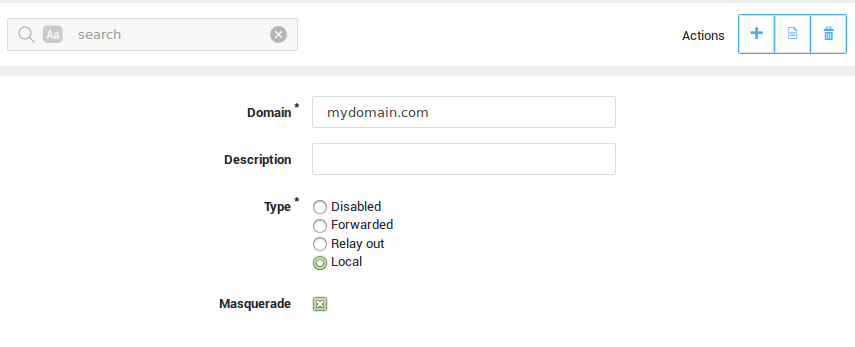
Use these instructions if the AXS Guard Content Scanning and E-mail Server features are both enabled.
-
Navigate to E-mail > Domains and click on Add New.
-
Enter the domain as specified under System > General, using lower cases.
-
Enter a description (optional) for the domain.
-
Select local as the type.
-
Save your configuration.
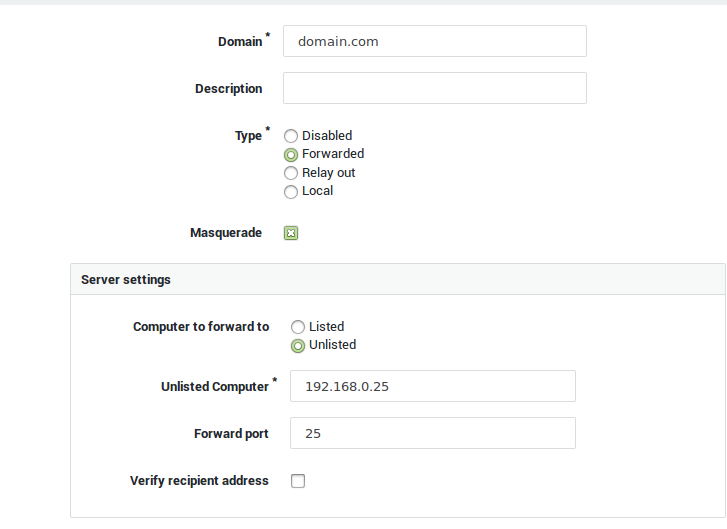
Use these instructions if the AXS Guard Content Scanning feature is enabled and the e-mail server is disabled, i.e. when a separate e-mail server is available in your secure LAN, e.g. a Microsoft Exchange Server.
-
Navigate to E-mail > Domains and click on Add New.
-
Enter the system domain as entered under System > General.
-
Enter a description for the domain (optional field).
-
Select Forwarded as the type.
-
Select Unlisted computer in the Server Settings.
-
Enter the hostname or IP address of the e-mail server in your secure LAN. The hostname must be resolvable.
-
Enter the port number (Forward Port) and save your configuration.
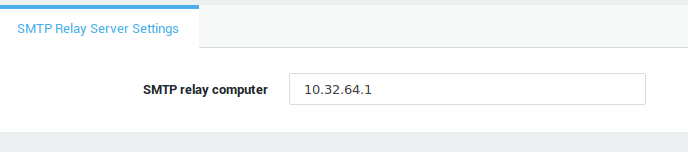
Use these instructions if the AXS Guard Content Scanning and E-mail Server features are both disabled. This scenario allows system e-mails to be transmitted to another MTA in the secure LAN or to the SMTP server of your ISP.
-
Navigate to E-mail > Server.
-
Enter the hostname or IP address of an SMTP relay server. The hostname must be resolvable.
-
Save your configuration.
Strong Authentication
To secure access to your network and applications, AXS Guard offers a selection of various strong user authentication and 2FA options.
One-time passwords are more secure than user-created passwords, which can be weak or reused across multiple accounts. One-time passwords can fully replace classic passwords or can be used in addition to them in order to add another layer of security.
Strong authentication helps to prevent unauthorised access to sensitive information and network resources, supports compliance with data protection regulations such as the GDPR, and avoids password fatigue, as one-time passwords are easily generated with a mobile device.
For additional information about AXS Guard authentication capabilities and configuration instructions, see the authentication manual on this site.
Other AXS Guard Features
See the relevant configuration instructions in the product manuals section of this site:
| Feature Group | Manuals |
|---|---|
| VPN | AXS One, WireGuard, OpenVPN, IPsec, XAUTH, SSTP, L2TP, Remote Workspace |
| Networking | Internet Redundancy, Bandwidth Management, Public DNS |
| Security | Reverse Proxy, IDS & IPS |
| Personal AXS Guard | Server-side and client-side configuration of PAX hardware. |
| High Availability | High availability ensures that a system or service remains operational and accessible even in the event of hardware failures, software errors, or other disruptions. |
Support
If you encounter a problem
If you encounter a problem with AXS Guard, follow the steps below:
-
Check the troubleshooting section of the feature-specific manual.
-
Check the knowledge base on this site for information about special configurations.
-
If no solution is available in any of the above sources, contact your AXS Guard vendor.
Contact Information
(+32) 15-504-400
support@axsguard.com