Diagnostics and Troubleshooting
Checking the System Status
You can conveniently monitor the status of any deployed PAX unit through multiple methods, including remote access via the AXS Guard VPN server, the Cyber Resilience Portal, or by logging in directly to the PAX unit on your local network.
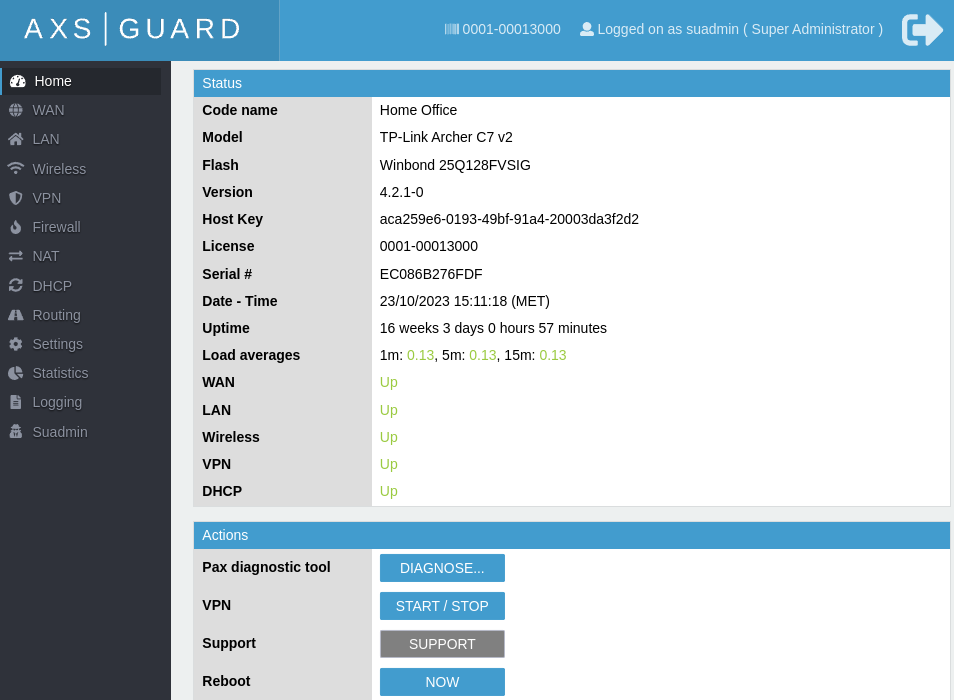
The status screen provides information about the VPN and Internet connection, the assigned IP address, transmitted and received bytes, license information, etc. This information is self-explanatory.
On AXS Guard
-
Log in to the AXS Guard appliance.
-
Navigate to VPN > PAX > Status.

On the PAX Unit
- Log in to the PAX unit.
-
Click on the appropriate menu on the left to view the relevant status information, e.g. DHCP information.
Cyber Resilience Portal
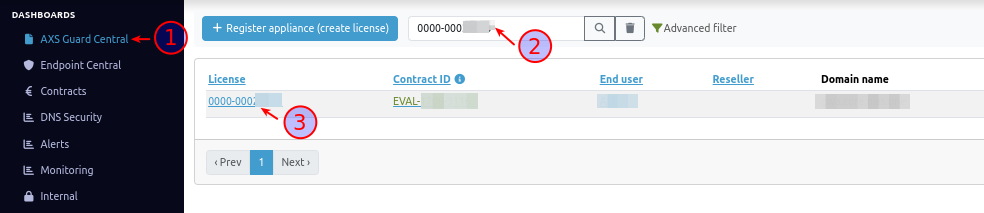
- Log in to the Cyber Resilience Portal.
- Go to Adaptive Security > Infrastructure and enter the license number of your AXS Guard appliance, e.g.
0000-00012345. -
Click on the license number.
-
Select the Personal AXS Guard tab.
-
To access the PAX unit you'd like to log into, click on the corresponding license ID, e.g.
0001-00012345.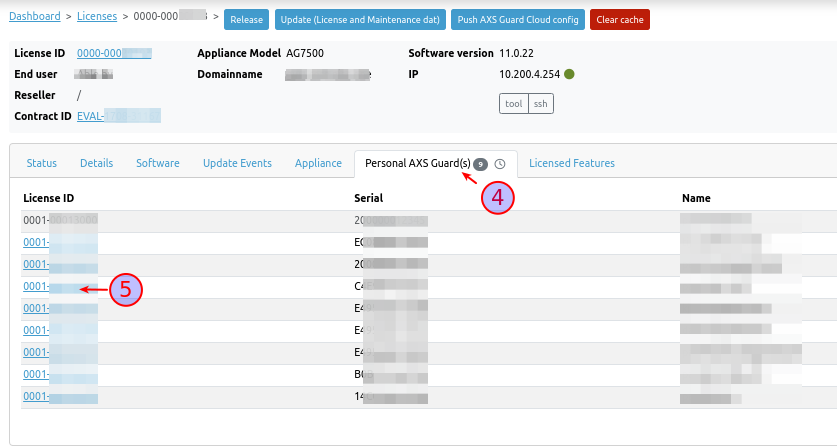
-
Please take note that this login feature necessitates PAX software version
4.2.0-0or a more recent release. Click on the login button.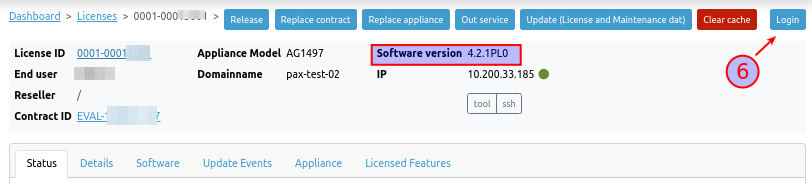
-
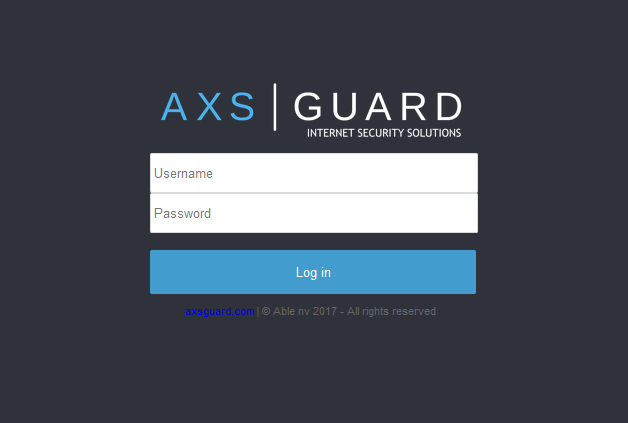
The login page of the PAX unit will open in a new browser tab. Log in with the credentials that you configured on the server side.
PAX Logs
PAX logs are available on AXS Guard as well as the PAX unit. There are two types of logging on AXS Guard; server and client logging.
On AXS Guard
-
Log in to your AXS Guard appliance.
-
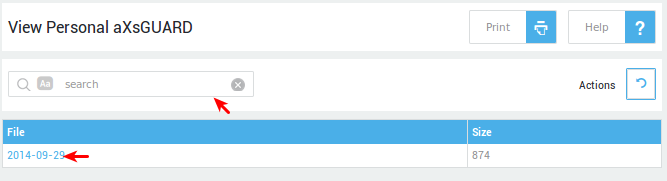
Navigate to VPN > PAX > Logs.
-
Select the appropriate logs (server or client logs).
-
Click on the appropriate log date to view the corresponding log file.
On the PAX Unit
Important
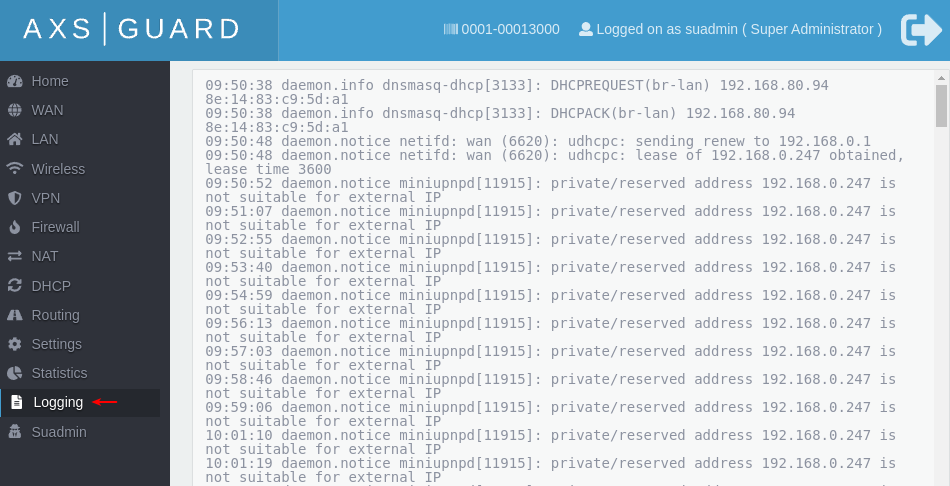
PAX units frequently rotate their logs due to limited system resources (only 16 KB of memory is available). Logs are limited to about 160 lines.
-
Log in to the PAX unit.
-
Click on Logging to view the logs.
Network Statistics
Network stats can be viewed per network device. This allows you to detect and examine unusual traffic peaks or to gather statistical information for any purpose you see fit.
Running Diagnostics
-
Log in to the PAX unit.
-
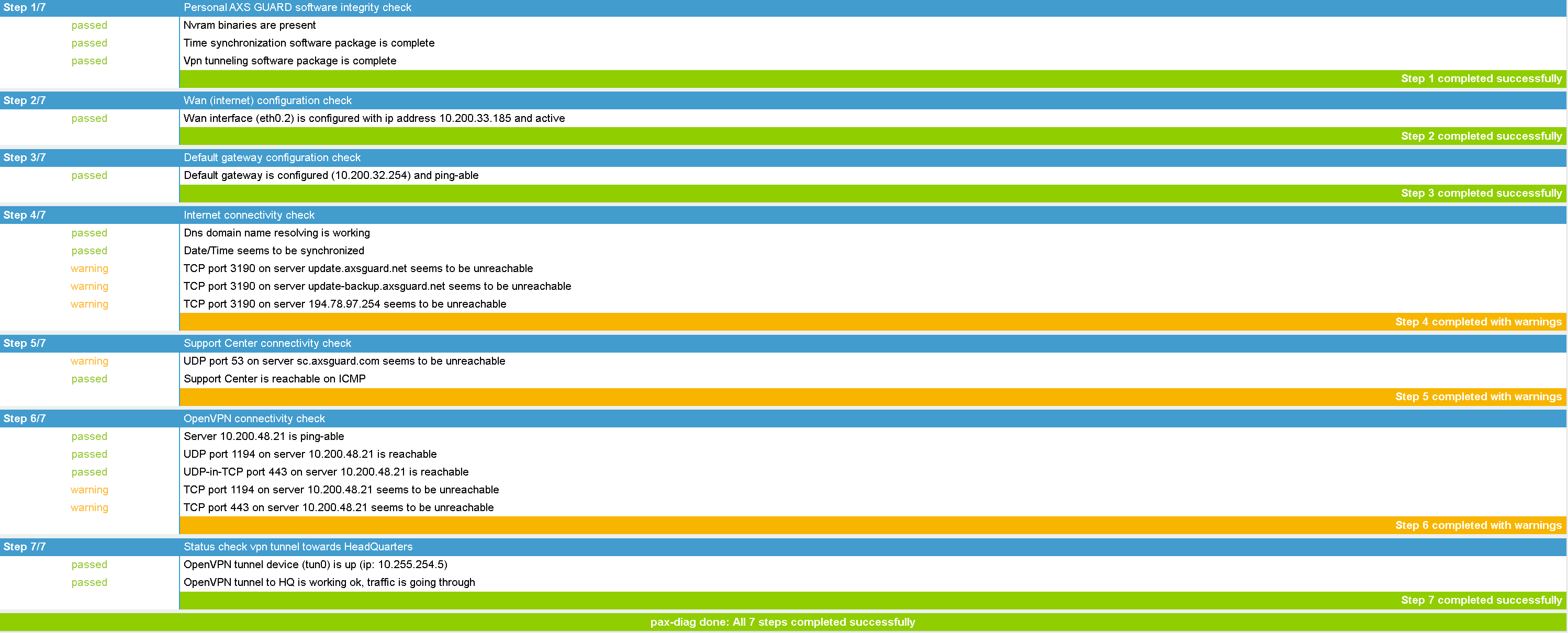
Click on Diagnose.
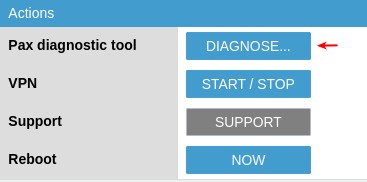
The PAX diagnostic tool helps system administrators to identify problems and detect network issues more easily:
Initiating Remote Support
-
Log in to the PAX unit.
-
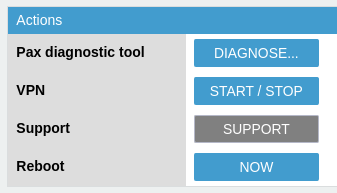
Click on Support to initiate a support connection.
Troubleshooting
The PAX unit cannot establish a VPN connection with the corporate AXS Guard VPN server.
- Ensure that traffic towards port 1194 is allowed on the Internet interface of the corporate AXS Guard server for the selected VPN protocol (TCP or UDP). This is required to initialize the SSL tunnel.
- Ensure that you have selected the correct VPN protocol on the PAX unit. For example: if the AXS Guard VPN server has been configured to only accept UDP connections on port 1194, either UDP or Auto must be configured on the PAX unit.
- Ensure that the correct client certificate has been installed on the PAX unit. (Especially if you have several sites to which the PAX unit can connect). Client certificates are derived from server certificates; trying to establish a connection with the wrong certificate is impossible.
- Verify if the installed PAX certificate isn’t expired.
- Verify if you exported the right type of certificate (PKCS12).
- Verify the IP address or the FQDN of the AXS Guard VPN server you are trying to connect to.
I cannot connect to the PAX web-based configuration tool.
- Verify the proxy server settings of your Internet browser. If a proxy server is configured, you may not be able to access the PAX administrator tool. Clear the settings and try again.
- Verify whether your client PC is in the same network range as the PAX unit. The PAX unit downloads its settings from the corporate AXS Guard VPN server. Once the PAX unit has successfully established a VPN connection, its LAN IP address and other configuration settings are automatically updated. This problem is most likely to occur if you changed the default LAN settings of the PAX unit on AXS Guard.
I cannot connect to the corporate LAN, even though the VPN connection is established.
- Ensure that the correct routing entries have been added.
- Verify your firewall settings.
- Ensure application control is disabled or allows appropriate traffic.
I cannot connect to the Internet after establishing a VPN connection.
If all traffic is routed via the VPN, verify if the correct routes and firewall policies have been added to allow Internet traffic.
The VPN Tunnel disconnects and reconnects frequently.
- Check the load averages on the PAX unit.
- Run diagnostics and reboot the unit.
- If the issue persists after rebooting, contact your PAX vendor.
Support
If you encounter a problem
If you encounter a problem with AXS Guard, follow the steps below:
-
Check the troubleshooting section of the feature-specific manual.
-
Check the knowledge base on this site for information about special configurations.
-
If no solution is available in any of the above sources, contact your AXS Guard vendor.
Contact Information
(+32) 15-504-400
support@axsguard.com