OpenVPN Client-Side Configuration
This guide explains how to connect Windows clients to the AXS Guard OpenVPN server. The server configuration, the status and logs, and server-side troubleshooting are covered in OpenVPN Server-Side Configuration.
Connection Methods
An OpenVPN client needs a connection profile (an .ovpn file) to connect to the AXS Guard OpenVPN server. The profile contains the connection settings, the user's client certificate and its private key. AXS Guard offers two ways to get a connection profile onto a client:
| Import from URL (recommended) | Import from file | |
|---|---|---|
| How it works | The user enters the address of the AXS Guard OpenVPN Access Server in OpenVPN Connect and signs in. The app downloads the connection profile. | The administrator exports the connection profile on AXS Guard and gives the file to the user, who imports it into the OpenVPN client. |
| Client certificate | Issued automatically by AXS Guard when the user imports the profile. | Issued by the administrator in PKI > Certificates. |
| Clients | OpenVPN Connect and the other supported clients. | Any OpenVPN client. |
| Credentials to get the profile | The user's AXS Guard credentials, as set in the OpenVPN Access Server authentication policy. | None. The user receives the file from the administrator. |
| Credentials to connect | The password set in the OpenVPN authentication policy, for example a one-time password, or Microsoft Entra ID sign-in. | The password set in the OpenVPN authentication policy, and the export password if the profile was exported with private key protection. |
| Server configuration | Access Server settings | Exporting connection profiles |
| Instructions | Importing a Profile from a URL | Importing a Profile from a File |
OpenVPN Access Server on AXS Guard
The AXS Guard OpenVPN Access Server is a service built into AXS Guard. It provides connection profiles to OpenVPN Connect in the same way as OpenVPN Access Server, the commercial server product of OpenVPN Inc., which is why OpenVPN Connect can import profiles from it. The OpenVPN Inc. Access Server documentation does not apply to AXS Guard.
The instructions in this guide are for Windows. For other platforms, refer to the OpenVPN Connect documentation.
Supported Clients
The following clients can import a connection profile from a URL. Connection profiles imported from a file can also be used with other OpenVPN clients.
| OS | Client |
|---|---|
| Windows | OpenVPN Connect |
| Android | |
| Linux | OpenVPN 3 Linux |
| macOS | OpenVPN Connect v3 (OpenVPN Connect v2 is not supported) |
| iOS | OpenVPN Connect v3 |
Importing a Profile from a URL
With this method, users import their connection profile themselves in OpenVPN Connect. No files have to be exported or distributed.
Requirements
- A supported client, such as OpenVPN Connect.
- The connection URL of the AXS Guard OpenVPN Access Server.
- An AXS Guard user account that is allowed to use OpenVPN.
- The OpenVPN server and the OpenVPN Access Server must be configured, as explained in Access Server Settings.
Connection URL
By default, users connect via the standard URL, which needs no additional configuration. A custom URL is only available if your administrator has configured the Local Access Server.
| Access Type | URL |
|---|---|
| Standard URL | https://0000-00012345.appliances.axsguard.cloud/ (replace 0000-00012345 with the license number of your AXS Guard appliance) |
| HA cluster URL (master node) | https://m-0000-00012345.appliances.axsguard.cloud/ |
| Custom URL | https://openvpn.mycompany.com (see the OpenVPN Access Server knowledge base article) |
Important - OpenVPN Access in High Availability (HA) Configurations
In High Availability (HA) configurations, URLs with the m- and s- prefixes automatically redirect to the active master and slave nodes. The master node handles the primary OpenVPN connections, while the slave node is ready to take over if a failover occurs.
For example, https://m-0000-00012345.appliances.axsguard.cloud always points to the running master appliance. In the event of a master failure, the running slave appliance will be promoted to master, ensuring continuous availability. The OpenVPN service on the new master will automatically take over and maintain VPN access without requiring changes to the user's connection settings.
This seamless redirection ensures uninterrupted VPN connectivity even during appliance failover.
Connecting with OpenVPN Connect
- Download and install the OpenVPN Connect app.
- Launch the OpenVPN Connect app.
-
Enter the connection URL, for example
https://0000-00012345.appliances.axsguard.cloud/.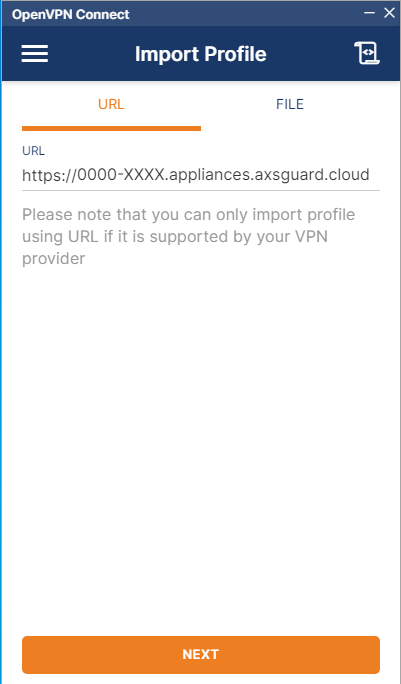
-
Click on the Next button.
- Enter your AXS Guard username and password, as required by the OpenVPN Access Server authentication policy.
- Click on Import to download your connection profile. The profile is user-locked: it contains a client certificate that AXS Guard issues automatically for your account, and it can only be used with your credentials.
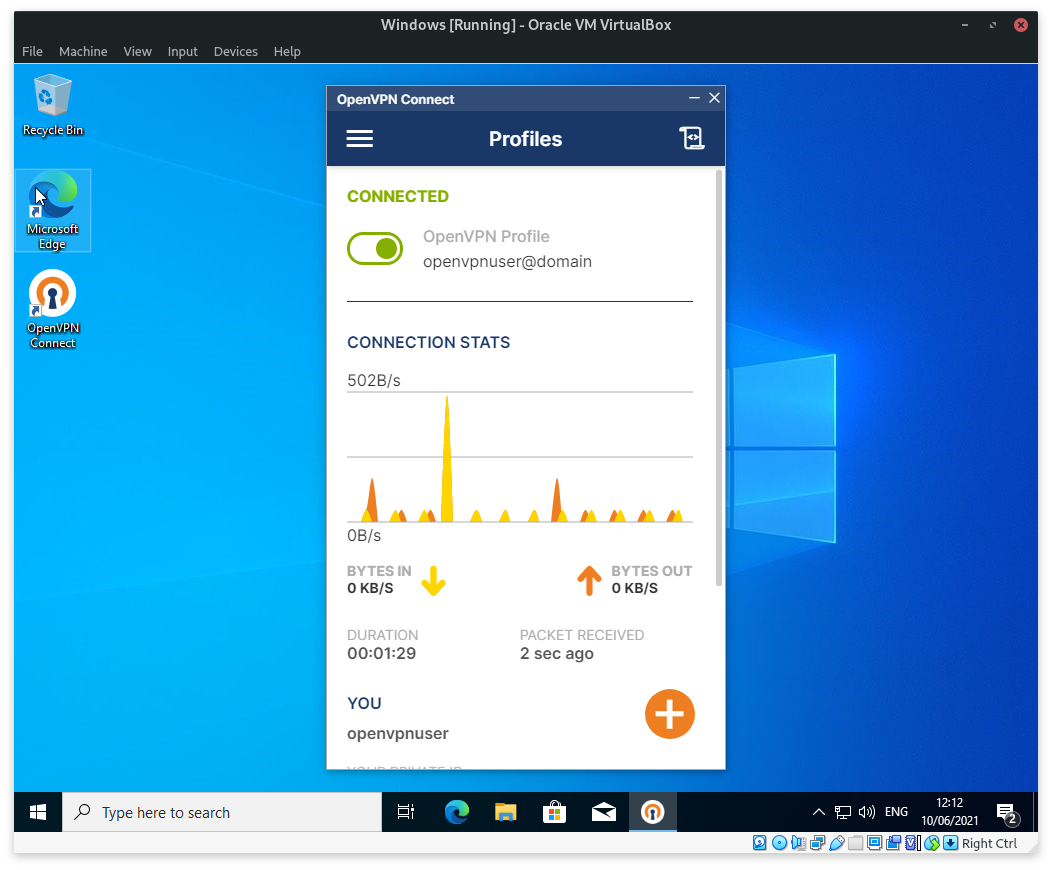
- Click on the slider button to connect to the OpenVPN server.
-
When prompted, enter the password required by the OpenVPN authentication policy, for example a one-time password. This is not a certificate password.
Tip
To sign in with Microsoft Entra ID when connecting, see SSO for OpenVPN Access Server with Microsoft Entra ID.
Importing a Profile from a File
With this method, the administrator exports the connection profile on AXS Guard and gives it to the user. This takes more manual work than importing a profile from a URL, which is recommended where possible.
Export Formats
| Export Format | Contents |
|---|---|
| OpenVPN configuration with private key protection (recommended) | A zip file containing the OpenVPN configuration file (.ovpn) and a PKCS #12 (.p12) file. The PKCS #12 file is protected with the export password and contains the public X.509 certificate, the private key and the certificate chain. |
| OpenVPN configuration without private key protection | A single .ovpn file containing the OpenVPN configuration, the required certificates and the private key. The private key is not password-protected, so anyone who obtains the file can use it. |
Tip
Give users the export password through a different channel than the file itself, for example by phone instead of e-mail.
Prerequisites
You need the following to install, configure and run your OpenVPN client in Windows:
- The connection profile exported by your administrator and, if it was exported with private key protection, the export password.
- The free OpenVPN client, which can be downloaded from https://openvpn.net/vpn-client/
- A Windows workstation with Internet access.
- Windows administrator privileges (required to install and run the OpenVPN software).
Installing the OpenVPN Client
- Log in to Windows as an administrator.
- Download the OpenVPN client software.
- Start the installer and follow the on-screen instructions.
Extracting the Configuration Files
This step is only needed for profiles exported with private key protection (zip file).
- Log on to Windows (administrator privileges are required).
- Save the zip file to the location of your choice.
-
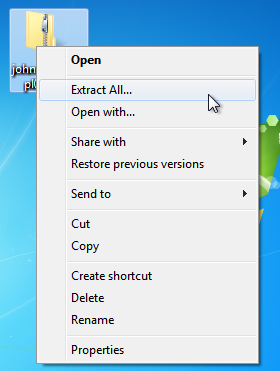
Right click on the file and select Extract All as shown below.
Testing the OpenVPN Connection
- Open the folder where you saved or extracted the OpenVPN configuration file.
-
Right-click on the OpenVPN configuration file (
.ovpn) and select Start OpenVPN on this config file (administrator privileges are required).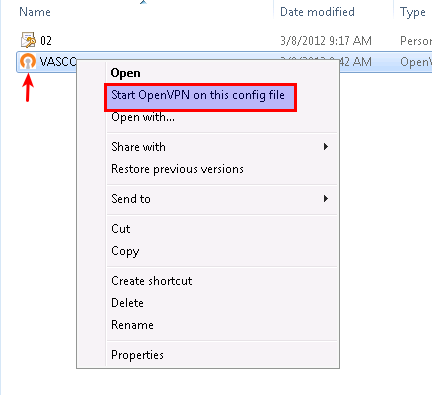
-
When prompted, enter your credentials and, if the profile was exported with private key protection, the export password.
-
Minimize the window when your connection is up.
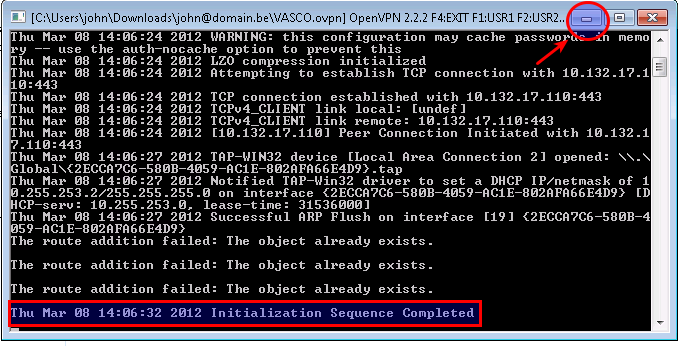
Close the window to stop the OpenVPN connection.
OpenVPN Connect can also import a connection profile from a file. See Import a connection profile in the OpenVPN Connect documentation.
Deploying to Managed Devices
To deploy OpenVPN clients and connection profiles to many Windows devices at once, for example with Active Directory group policies or a mobile device management (MDM) solution, use the deployment options of the OpenVPN client. These are documented by OpenVPN Inc.:
- OpenVPN Connect for Windows: the MSI installer.
- Command-line functionality: importing a connection profile with
--import-profile. - Global configuration file: preconfiguring OpenVPN Connect, including its profiles, with one
.ocfgfile. - OpenVPN GUI: the open-source Windows client and the folders it reads configuration files from.
The connection profiles are exported on AXS Guard as explained in Exporting Connection Profiles. Each profile contains the client certificate of one user.
Troubleshooting
The connection to the OpenVPN server is successful, but I cannot connect to the corporate LAN
Windows requires administrator privileges to execute some functions in the OpenVPN software, such as adding network routes. Run the OpenVPN client as an administrator.
The OpenVPN client indicates that the route addition failed using CreateIpForwardEntry
Run the OpenVPN client as an administrator.
The OpenVPN client indicates that the user cannot write to the log folder
Run the OpenVPN client as an administrator.
Connecting without entering a certificate password
Export the connection profile with the format OpenVPN configuration without private key protection, as explained in Export Formats.
Important
This is possible, but not recommended. The export password protects the private key when the profile is copied from one location to another. It also prevents abuse if the file is intercepted or stolen, and provides authentication if no other authentication method has been configured for the OpenVPN service.